Create Your Own Static Site Generator
2026-03-10
web development, python
10 minutes

Disclaimer: All content on this website, including all code examples, is created and written by me. No AI tools were used in the creation of any content on this site.
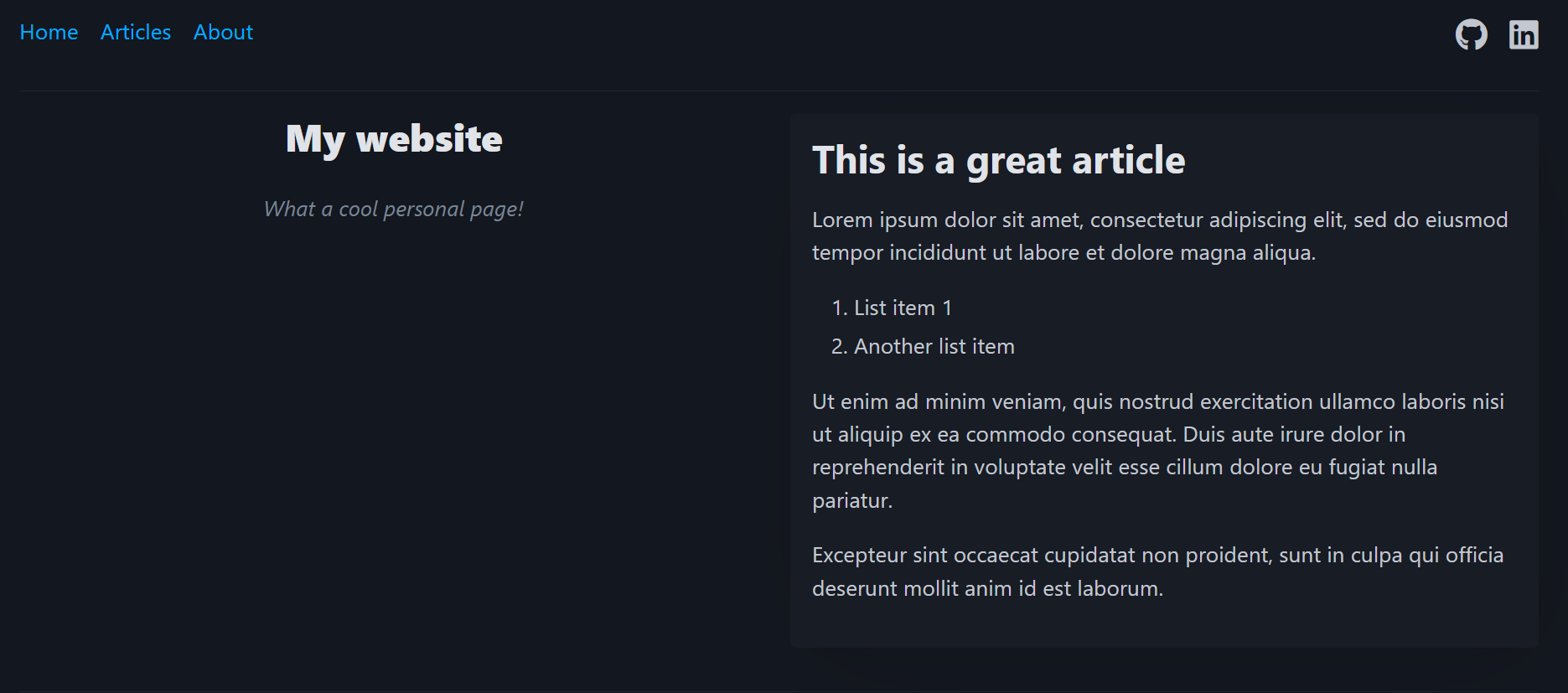
An example of what we’ll be discussing in this article
We saw in June last year how to quickly create your personal space on the internet without using Wordpress or simple profile aggregators such as LinkTree. Amongst other things, we went through a list of beginner-friendly website frameworks like HydePHP, Gatbsy or Jekyll.
The website that you are currently viewing started in 2020 and was originally built with Hugo. However and as you might have noticed, blanchardjulien.com underwent a massive change in December last year and now looks completely different from what it used to.
Long story short, I ran into a compatibility issue after changing the ssd on my NUC desktop computer and installing a version of Hugo that wouldn't work with the theme I was using.
Rather than trying to fix that problem, I decided it was high time I built my own website framework and this is what we'll be discussing today.
But before we get to that, what is a static site generator anyway? Well imagine that everytime you write a new post, you also have to update your home and posts index pages accordingly. That sounds incredibly tedious right? But what if we could simply write our posts in say, markdown format, and then run a script that builds and updates all the webpages for us? Well that is exactly what a static site generator does.
To be honest, there's no real valid reason to build your own static site generator in 2025. The aforementioned frameworks are pretty stable and offer a lot of customisation possibilities.
What they take away from you though, is all the fun of writing your own code and having a website that feels like it's really yours.
Bear in mind that as discussed in the introduction, we won't be connecting to a database, or retrieving data from an API, etc.. Our goal is to build a good old website that basically consists of a bunch of html pages, bundled with some css and light JavaScript code.
To create that static site generator, we'll need a language that can:
replace() or split().That leaves us with a lot of options to pick up from: JavaScript, TypeScript, Ruby, Kotlin, etc.. Any of these languages are pretty solid choices for what we're trying to do here.
I personally went for Python as I wanted to spin up something quickly, but I'll probably end up rewriting all my code in a funkier language when I have time.
Alright, so what do we need next? A css framework of course. This is optional but highly recommended as well. This time we're presented with two main families to choose from:
Strongly opinionated, class-less frameworks such as Milligram, Concrete, or Pico. If you want to know more about these css libraries and how to integrate them into your projects, please check out this article that I wrote in 2022.
More customisable but also slightly more verbose frameworks like Tailwind or Bootstrap. I personally decided to go this route and wrote all my css with Bulma, a library I had already used in the past and found great.
Now that we've made our choices, we're ready to get started. So how does a static site generator work?
Our whole approach will be based on the following series of steps:
Pico.css is one of these aforementioned "opinionated" css frameworks. What is meant by this is fairly simple: as an end user you don't need to write any css code at all. Simply add a link to the css library you've decided to go with, and your webpage will be automatically styled for you. The downside of this approach is that you don't really get to change the colour or the look of any of the elements on your webpage. Your users can switch between a light and a dark mode, but that's pretty much it.
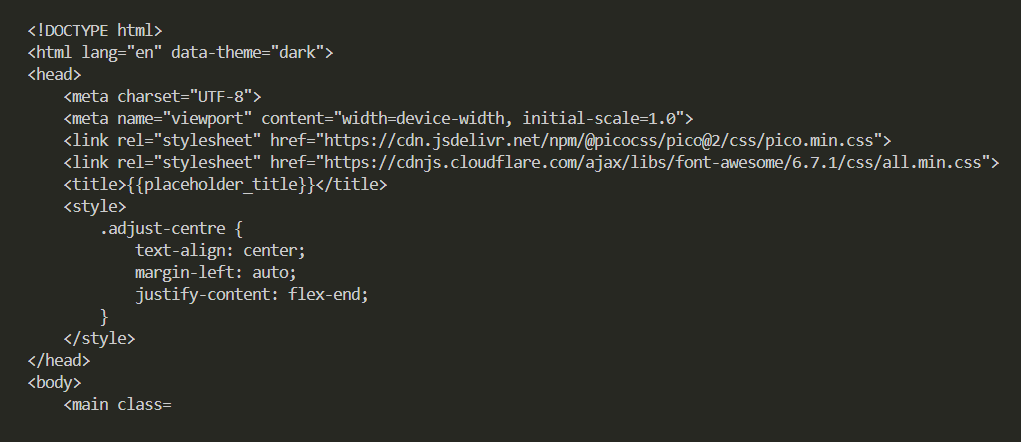
Let's start by writing a simple html template file named template_main.html:
<!DOCTYPE html>
<html lang="en" data-theme="dark">
<head>
<meta charset="UTF-8">
<meta name="viewport" content="width=device-width, initial-scale=1.0">
<link rel="stylesheet" href="https://cdn.jsdelivr.net/npm/@picocss/pico@2/css/pico.min.css">
<link rel="stylesheet" href="https://cdnjs.cloudflare.com/ajax/libs/font-awesome/6.7.1/css/all.min.css">
<title>{{placeholder_title}}</title>
<style>
.adjust-centre {
text-align: center;
margin-left: auto;
justify-content: flex-end;
}
</style>
</head>
<body>
<main class="container">
<nav id="header">
<ul>
<li><a href="#">Home</a></li>
<li><a href="#">Articles</a></li>
<li><a href="#">About</a></li>
</ul>
<ul>
<li><span><i class="fab fa-github fa-xl"></i></span></li>
<li><span><i class="fab fa-linkedin fa-xl"></i></span></li>
</ul>
</nav>
<hr>
<div class="grid">
<div>
<hgroup class="adjust-centre">
<h2><strong>{{placeholder_title}}</strong></h2>
<br>
<p><i>{{placeholder_subtitle}}</i></p>
</hgroup>
</div>
<div>
<article>
{{placeholder_content}}
</article>
</div>
</div>
<hr><br>
<footer>
<article class="secondary">
<p class="adjust-centre">© {{placeholder_author}}</p>
</article>
</footer>
</main>
</body>
</html>
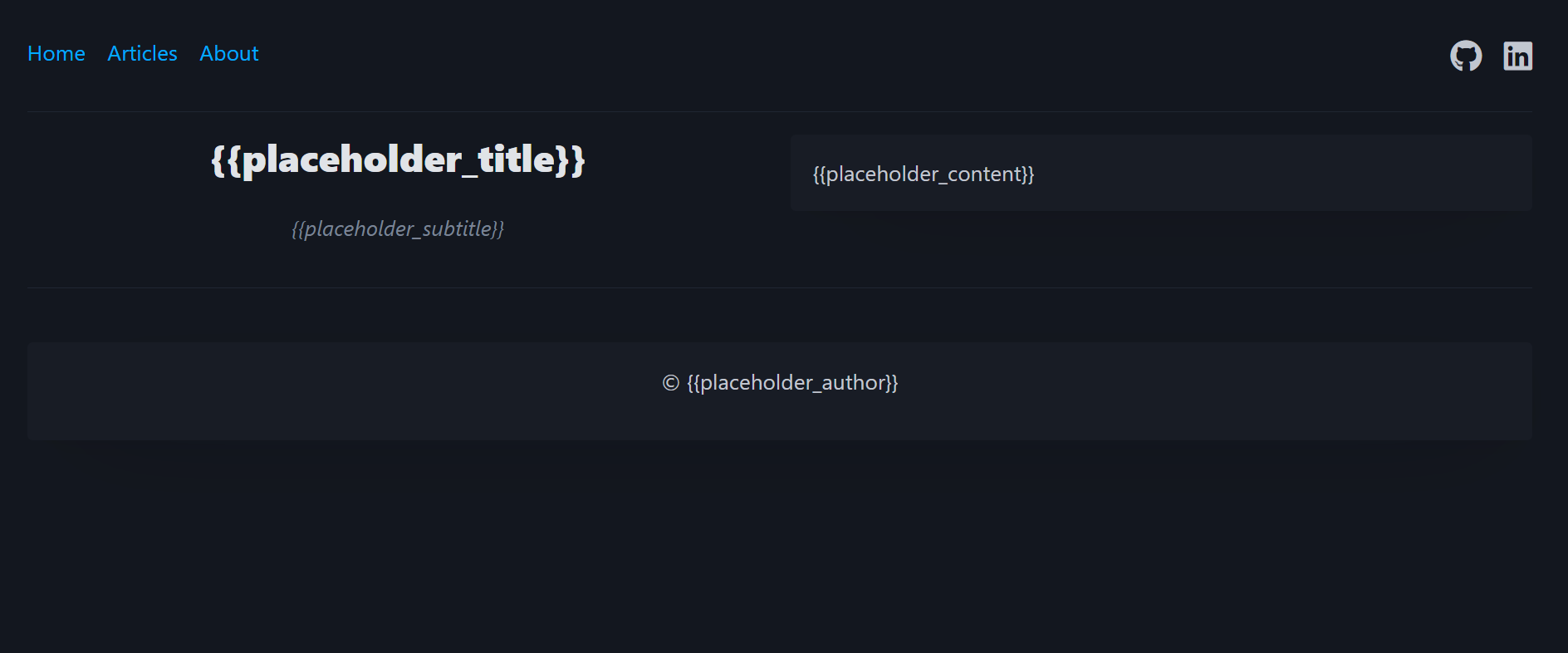
It doesn't look too bad to be honest. We have a nav bar, some icons courtesy of FontAwesome, and a content section that we have splitted vertically into two panels.
The left section as well as your nav bar will never change and basically combine to form your site's layout. However your articles, your "about" as well as your "home" sections and pretty much anything that you'll want to share with your viewers will appears where this ugly {{placeholder_content}} currently sits.
So what are we going to do with all these {{placeholder_something}} values you might wonder? Well let's first create a json file at the root of our project and call it config.json:
{
    "author": "John Doe",
    "title": "My website",
    "subtitle": "What a cool personal page!",
    "year": "2025"
}
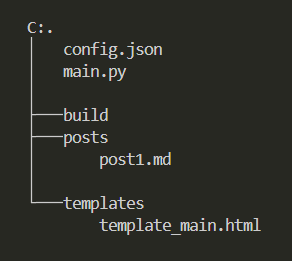
We're going to need a few more files and folders before we start:
templates and move your template_main.html file into it.main.py.build and another one named posts where you'll place a new file called post1.md with the following content:## This is a great article
Lorem ipsum dolor sit amet, consectetur adipiscing elit, sed do eiusmod tempor incididunt ut labore et dolore magna aliqua.
1. List item 1
2. Another list item
Ut enim ad minim veniam, quis nostrud exercitation ullamco laboris nisi ut aliquip ex ea commodo consequat. Duis aute irure dolor in reprehenderit in voluptate velit esse cillum dolore eu fugiat nulla pariatur.
Excepteur sint occaecat cupidatat non proident, sunt in culpa qui officia deserunt mollit anim id est laborum.
Close this file and open up main.py instead. We should first import some libraries that we'll be using and define a few constants while we're here:
# libraries
import os
from typing import Dict
import json
import mistune

# directories
CURR_DIR: str = os.getcwd()
TEMPLATES_DIR: str = os.path.join(CURR_DIR,"templates")
POSTS_DIR: str = os.path.join(CURR_DIR,"posts")
BUILD_DIR: str = os.path.join(CURR_DIR,"build")

# important files
CONFIG_FILE: str = os.path.join(CURR_DIR,"config.json")
TEMPLATE_MAIN: str = os.path.join(TEMPLATES_DIR,"template_main.html")
We're ready to write our first function, that will open any of our html template files (you'll need a few) and return a string:
def getHTMLTemplate(path_to_file: str) -> str:
    with open(path_to_file,"r") as html_file:
        html_as_string: str = html_file.read()
    return html_as_string

if __name__ == "__main__":
    template_main: str = getHTMLTemplate(TEMPLATE_MAIN)
    print(template_main)
It's high time we replaced those ugly {{placeholder_something}} entries! Let's open our json file, and then parse its values into our stringified html code:
def getConfig(path_to_file: str) -> Dict:
    with open(path_to_file,"r") as config_file:
        config_as_string: str = config_file.read()
    config_json: Dict = json.loads(config_as_string)
    return config_json

def createSiteLayout(template_with_placeholders: str, json_config: Dict) -> str:
    custom_layout: str = (
        template_with_placeholders
        .replace("{{placeholder_title}}",json_config["title"])
        .replace("{{placeholder_subtitle}}",json_config["subtitle"])
        .replace("{{placeholder_author}}",f'{json_config["author"]} {json_config["year"]}')
    )
    return custom_layout
We're almost done! But first we should probably save this customised html page as a new file named template_main_custom.html:
def createHTMLPage(html_string: str, path_to_file: str) -> None:
    with open(path_to_file,"w") as html_file:
        html_file.write(html_string)

if __name__ == "__main__":
    template_main: str = getHTMLTemplate(TEMPLATE_MAIN)
    config_json: Dict = getConfig(CONFIG_FILE)
    custom_layout: str = createSiteLayout(template_main,config_json)
    createHTMLPage(custom_layout,TEMPLATE_CUSTOM)
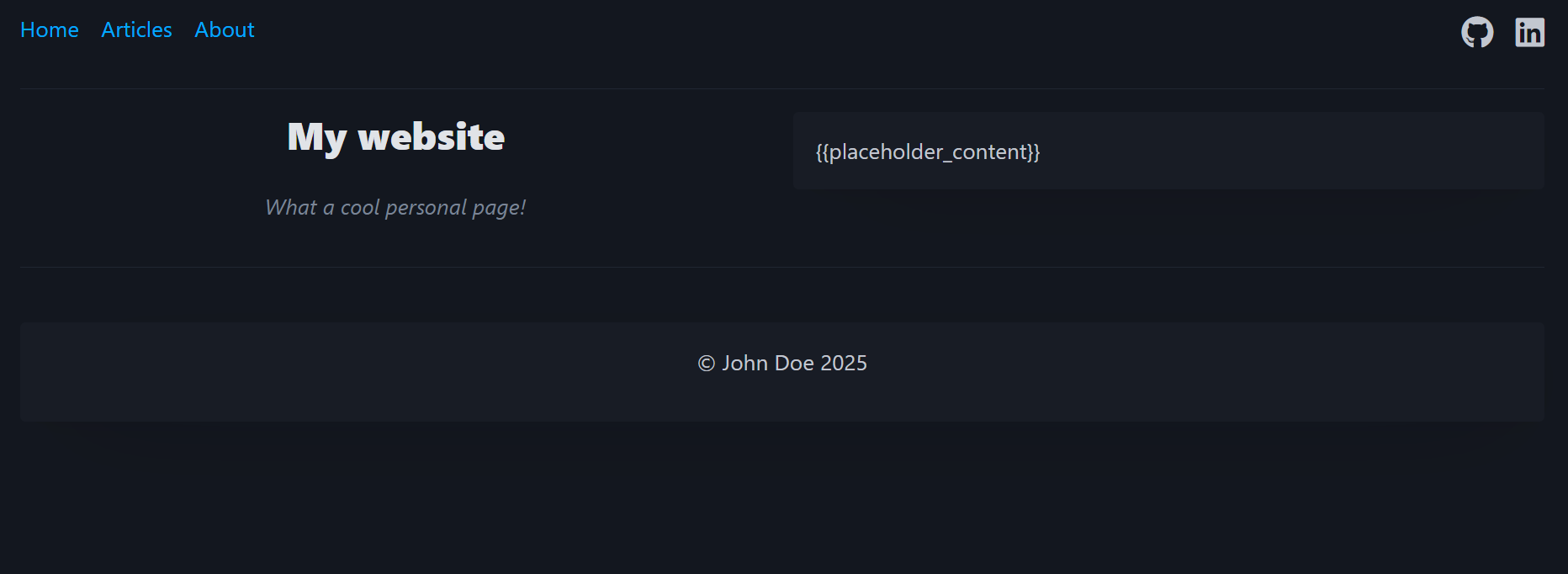
As you've probably guessed, this is the file that you'll be using from now on to generate all your pages. And by all I mean ALL your pages: your index.html file, your navigation page, all your articles. Literally everything.
Remember that post1.md file we worked on earlier? Why don't we combine it with our new template_main_custom.html and create our first article?
def generatePosts(path_to_post: str, template: str) -> None:
    with open(os.path.join(POSTS_DIR,path_to_post),"r") as markdown_file:
        post_as_string: str = markdown_file.read()
    post_as_html: str = mistune.html(post_as_string)
    full_post: str = (
        template
        .replace("{{placeholder_content}}",post_as_html)
    )
    build_dir: str = os.path.join(BUILD_DIR,f"{path_to_post.split('.')[0]}.html")
    with open(build_dir,"w") as html_file:
        html_file.write(full_post)

if __name__ == "__main__":
    template_main: str = getHTMLTemplate(TEMPLATE_MAIN)
    config_json: Dict = getConfig(CONFIG_FILE)
    custom_layout: str = createSiteLayout(template_main,config_json)
    createHTMLPage(custom_layout,TEMPLATE_CUSTOM)
    generatePosts("post1.md",custom_layout)
Rinse, repeat. Your website is ready!
You're probably already familiar with the Fontawesome (great for icons) and Google Fonts libraries so let's focus on something else instead.
If like me you enjoy programming languages and want to share your code through your personal website, you'll need a syntax highlighter.
Right now you'd be disappointed to see what happens if you were to add a pair of <code> tags to a simple html page:
<!DOCTYPE html>
<html lang="en" data-theme="dark">
<head>
    <meta charset="UTF-8">
    <meta name="viewport" content="width=device-width, initial-scale=1.0">
    <link rel="stylesheet" href="https://cdn.jsdelivr.net/npm/@picocss/pico@2/css/pico.min.css">
    <title>Document</title>
</head>
<body>
    <div class="container">
        <h2>Some random code:</h2>
        <br>
        <pre>
            <code>
                def sayHi(name: str) -> None:
                    greeting: str = f"Hi {name}!"

                sayHi("Julien")
            </code>
        </pre>
    </div>
</body>
</html>
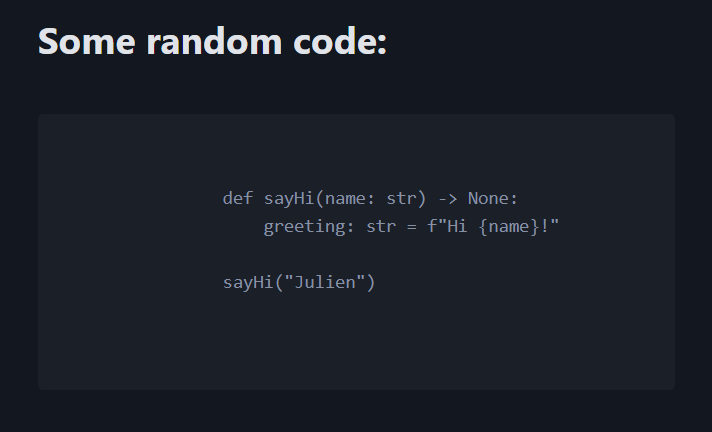
Not looking great, right? Luckily enough, a great little library named Highlight.js can add a bit of life to our Python function and make the above code snippet look better.
Highlight.js can render pretty much every language under the sun, and supports a ton of different colour themes that you can browse through here. We're going to pick the "pojoaque" syntax highlighter for a change (blanchardjulien.com uses "tokyo-night-dark"), and the Highlight.js css stylesheet we're importing has to match the exact name of the theme we intend to use:
<link rel="stylesheet" href="https://cdn.jsdelivr.net/npm/@picocss/pico@2/css/pico.min.css">
<link rel="stylesheet" href="https://cdnjs.cloudflare.com/ajax/libs/highlight.js/11.9.0/styles/pojoaque.min.css">
Our last step is to add a tiny bit of JavaScript at the bottom of this page, and hit refresh:
<script>hljs.highlightAll();</script>
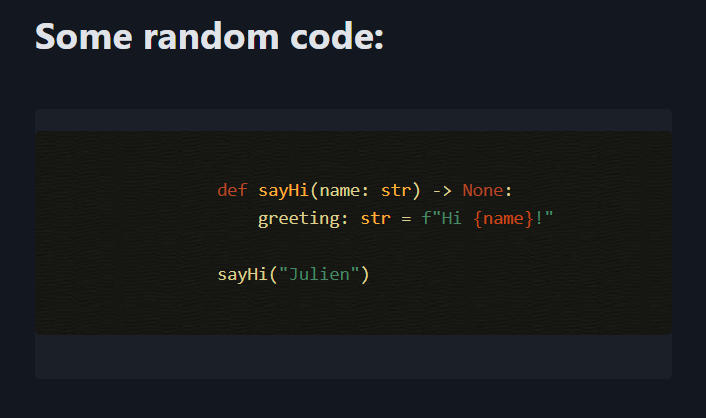
Now how about that!
The entire code for https://blanchardjulien.com/ can be found directly on my GitHub.
I decided to call this static site generator Loulou, and if you enjoyed reading today's article please feel free to star this project!
You'll easily find a lot of online tutorials that explain in greater details how to add additional features, such as a code sandbox or a comments section.
Personally, I would highly recommend this series of posts if you want to read more on the subject.
I hope you've enjoyed this article, and please reach out to me if you want to share your own creation!